How to convert images between PNG, JPG & WEBP
Updated 2026 · ~4 min read · by kizura
Picking the right image format affects file size, quality, and whether your image even displays correctly. Here's a practical breakdown of the three formats you'll meet most often, and how to convert between them.
JPG — best for photographs
JPG (or JPEG) uses lossy compression tuned for photographs and other images with smooth color gradients. It produces small files and is supported everywhere, from old browsers to printers. Its weaknesses: it cannot store transparency, and repeated saving degrades quality. Use it for photos and complex images where transparency isn't needed.
PNG — best for graphics and transparency
PNG is lossless, so it preserves every pixel exactly. It supports transparency (an alpha channel), which makes it ideal for logos, icons, screenshots, and graphics with sharp edges or text. The downside is large file sizes for photographs, where PNG offers no advantage over JPG or WEBP.
WEBP — the modern all-rounder
WEBP, developed by Google, supports both lossy and lossless modes and transparency, typically producing files 25–35% smaller than JPG or PNG at similar quality. It is supported by all current browsers. For most websites, WEBP is the best default — the main reason to avoid it is compatibility with very old software.
Quick decision guide
- Photograph for the web → WEBP (or JPG for maximum compatibility)
- Logo, icon, screenshot, or anything with transparency → PNG (or lossless WEBP)
- Image for print or email to anyone → JPG
How to convert safely
Converting to a lossy format (JPG/WEBP) discards some data, so always keep your original. Converting a JPG to PNG will not restore lost detail — it just stops further loss. Our format converter handles all three formats, processes everything in your browser, and can convert many files at once into a ZIP.
Before you ask
Will converting PNG to JPG reduce quality?
Slightly, because JPG is lossy. For photos the difference is usually invisible; for text or sharp graphics, keep PNG.
Is WEBP safe to use now?
Yes — every major browser has supported it for years. Only extremely old software may struggle.
Try the format converter now.
What conversion does to file size — measured both ways
The right target format depends entirely on what is in the picture, so we measured the same two test images in every direction. Image one: a 600×466 photograph (dense foliage). Image two: a 1,200×750 flat-colour dashboard graphic — the screenshot/logo/chart family.
| Format | Photograph | Flat graphic |
|---|---|---|
| PNG (lossless) | 650.8 KB | 7.4 KB |
| JPG quality 85 | 124.7 KB | 37.9 KB |
| WebP quality 85 | ~110 KB | 5.3 KB |
| WebP lossless | — | 1.9 KB |
Same encoder, same pixels. The winner flips completely depending on content.
Read that table twice, because it explains 90% of conversion decisions: the photo is 5× smaller as JPG than PNG, while the graphic is 5× smaller as PNG than JPG — and the JPG version of the graphic also smears the text edges. WebP simply wins both categories in 2026, lossy for photos and lossless for graphics, with near-universal browser support.
A quick conversion matrix
- PNG → JPG: for photographs saved as PNG by mistake (huge savings, as measured above). Never for logos or screenshots with text.
- PNG/JPG → WebP: the default modernisation move for websites; expect 15–35% off with equal appearance.
- WebP → JPG/PNG: compatibility conversions — some older software, print labs, and government upload forms still reject WebP.
- JPG → PNG: almost never what you want. It cannot restore quality JPG already discarded; it just makes the damaged file five times larger. If the goal is a cleaner image, upscale/enhance it instead.
The transparency trap
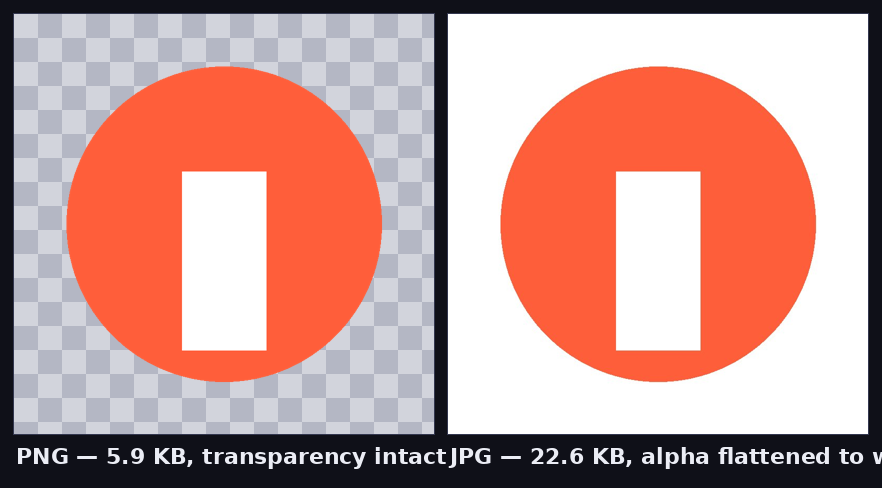
JPG has no alpha channel. Convert a transparent logo to JPG and the transparency is flattened — usually to solid white — permanently. We tested an 800×800 logo with a transparent background: as PNG it was 5.9 KB with transparency intact; as JPG it became 22.6 KB and gained a white box. If you need transparency, your options are PNG or WebP, full stop; and if you received a JPG that should have been transparent, the background remover can rebuild the cutout. One more chain to avoid: JPG → edit → JPG → edit → JPG. Each save is a new lossy generation, so when a file will be converted or edited more than once, do the intermediate steps in PNG and only export to JPG/WebP at the very end.